> ## Documentation Index
> Fetch the complete documentation index at: https://cobo.com/developers/llms.txt
> Use this file to discover all available pages before exploring further.
# Create a sample app
> Start building a Cobo Portal App with our step-by-step guide. Learn to set up, preview, and publish using Cobo CLI.
Try [Cobo WaaS Skill](/v2/guides/overview/cobo-waas-skill) in your AI coding assistant (Claude Code, Cursor, etc.). Describe your needs in natural language to auto-generate production-ready SDK code and debug faster 🚀
This article guides you through creating a sample Cobo Portal App using a template and previewing it locally.
## Prerequisites
* To build and manage a Cobo Portal App, you need to first create an organization in Cobo Portal in the [development environment](https://portal.dev.cobo.com/). Follow the instructions in [Set up your account and organization](https://manuals.cobo.com/en/portal/quick-start-guide) to set up your Cobo account and create your organization. If an organization has already been set up, ask your organization admin to invite you to join the organization.
* Install FastAPI as the development environment.
## Create an app project using Cobo CLI
Cobo Command Line Interface (CLI) is a powerful developer tool designed to help you build, test, and manage your integration with Cobo Wallet-as-a-Service (WaaS) 2.0 directly from the command line.
1. Install Cobo CLI using the following command:
```shell theme={null}
# Install Cobo CLI using pip (Python 3.9 or newer is required).
pip install cobo-cli
# Alternatively, you can install Cobo CLI using Homebrew.
brew install cobo-cli
# Test if the installation is successful
cobo version
```
For more details about the system requirements for Cobo CLI, please refer to [Install Cobo CLI](/v2/developer-tools/cobo-cli/quick-start-guide#system-requirements).
2. Log in to Cobo Portal and connect Cobo CLI to your Cobo Portal account. You can choose one of the [three authentication methods](/v2/developer-tools/cobo-cli/login-and-authentication) to authenticate. As an example, this step will show you how to authenticate with your Cobo Portal account:
```shell theme={null}
# Use your Cobo Portal account to authenticate.
cobo auth user
# Initiate the user login process.
cobo login
```
You'll be prompted to open a browser to continue the authorization process. Complete the authorization process in your browser, granting the necessary permissions for Cobo CLI to access your crypto wallets. For more details about authentication methods, see [Login and authentication](/v2/developer-tools/cobo-cli/login-and-authentication).
3. Use the [app init](/v2/developer-tools/cobo-cli/app-init) command to create a sample app based on a template. You can specify the details of the WaaS application you want to create through options, or choose these parameters step by step and create the project using the prompts of Cobo CLI.
The following command creates a Cobo Portal App project, using Org Access Tokens for authentication, and creates it in the directory named `hello_world`:
```shell theme={null}
cobo app init --app-type portal --auth org --directory hello_world
```
## Run and preview the app
1. Start the frontend server.
Navigate to the `frontend` folder in the directory where you created the app project and run the following command:
```shell theme={null}
npm install
npm start
```
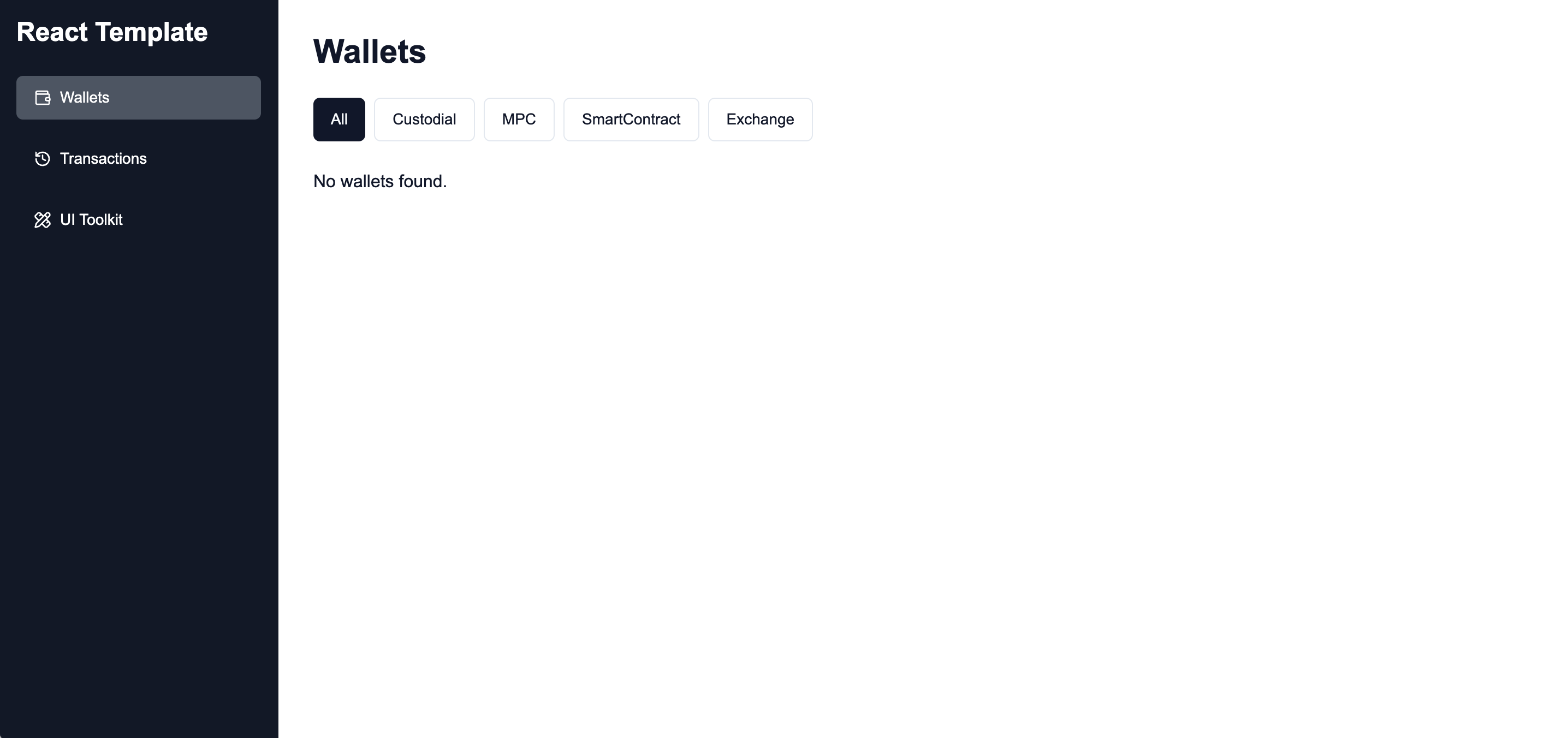
Now you can view the app's frontend as the following screenshot shows:
 2. Start the backend server.
Navigate to the `backend` folder in the directory where you created the app project and run the following command:
```shell theme={null}
uvicorn main:app --reload
```
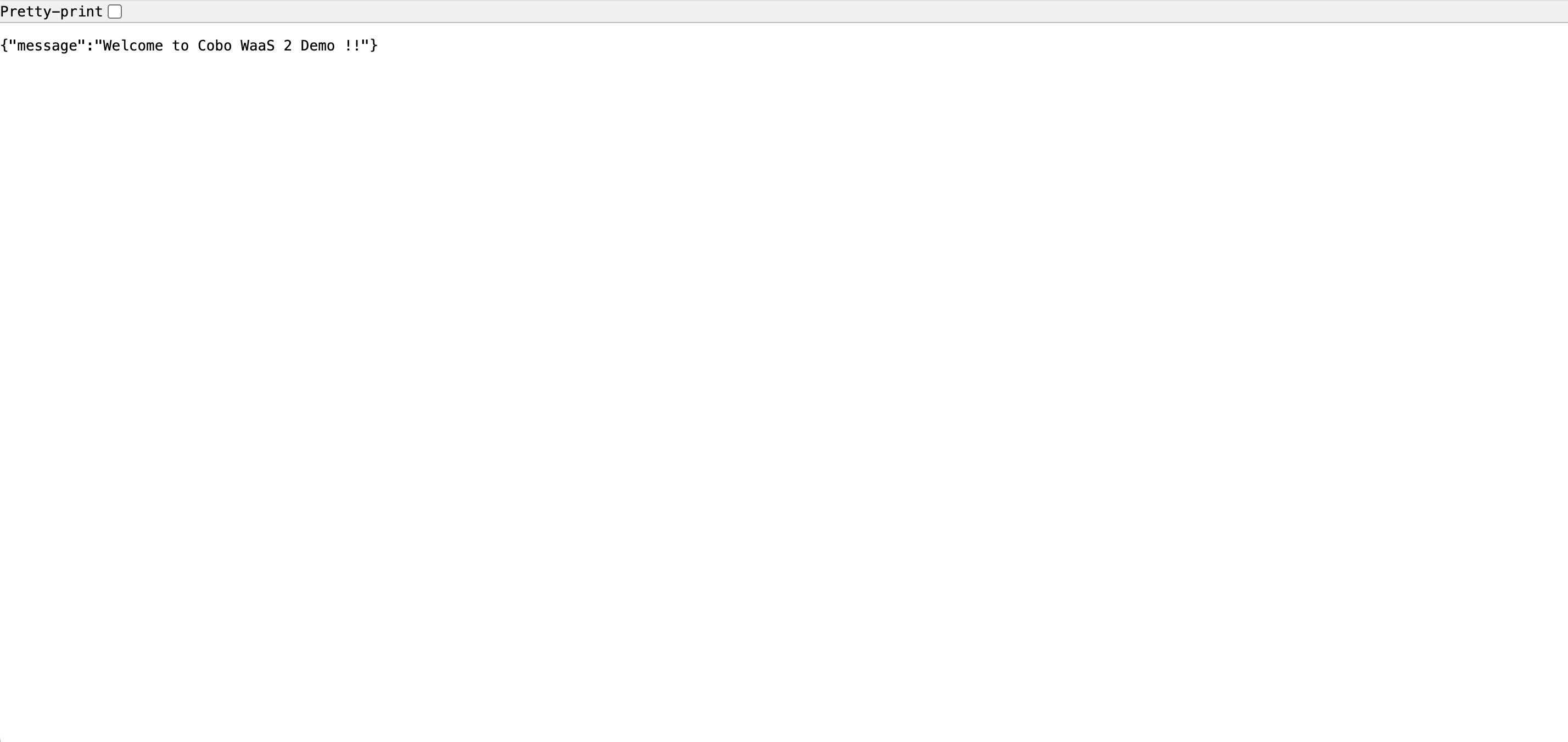
Now you can view the app's backend as the following screenshot shows:
2. Start the backend server.
Navigate to the `backend` folder in the directory where you created the app project and run the following command:
```shell theme={null}
uvicorn main:app --reload
```
Now you can view the app's backend as the following screenshot shows:
 To display the wallets and transactions in your organization, you need to complete the following steps:
* Find the `.env.example` file in the `backend` folder and rename it to `.env`. In the `.env` file, set `COBO_API_KEY` as your API key, `COBO_API_SECRET` as your API secret, and set `COBO_ENV` as `dev` or `production` based on the environment you use. For more information about API keys, refer to [API key](/v2/guides/overview/cobo-auth#api-key).
* Register your API key on Cobo Portal. For more details, refer to [Register an API key](https://manuals.cobo.com/en/portal/developer-console/create-api-key).
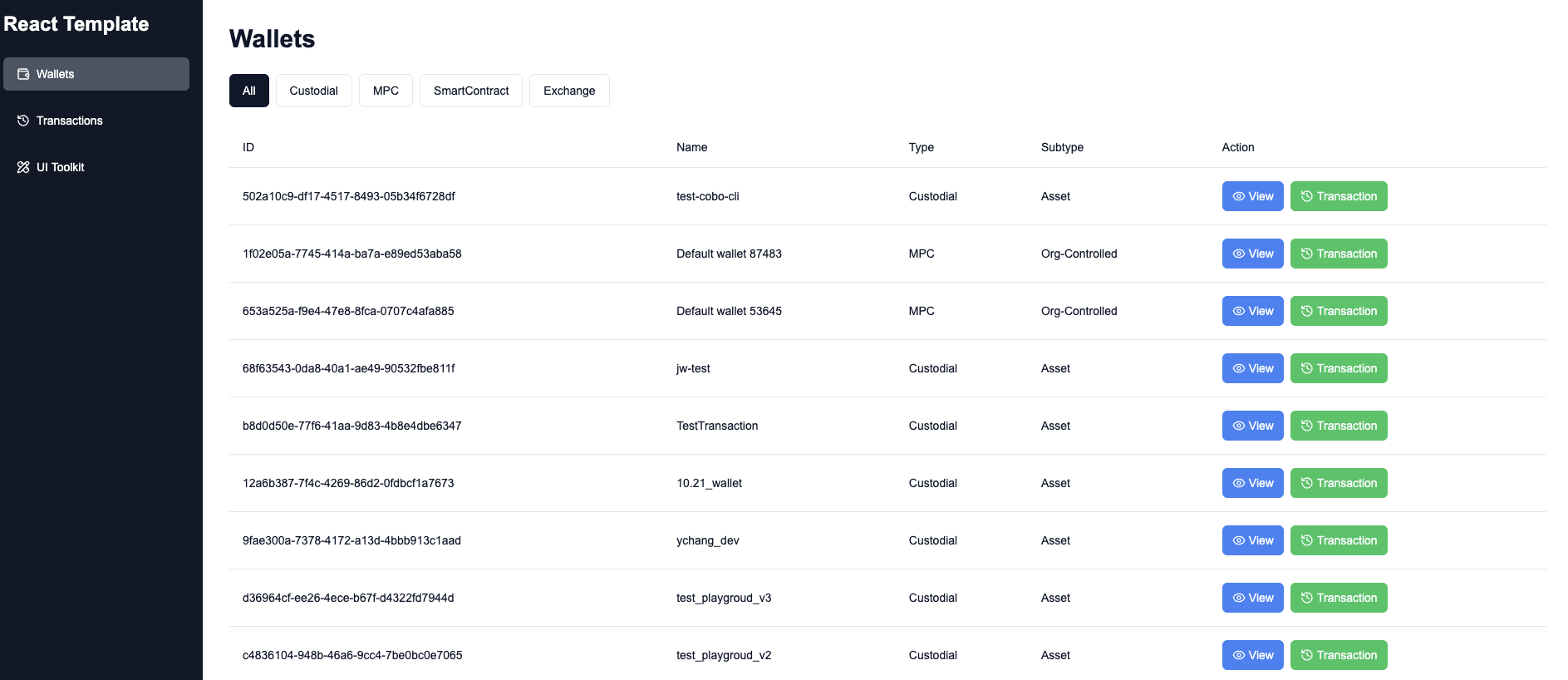
After you complete the above steps, you can view the wallets and transactions as the following screenshot shows:
To display the wallets and transactions in your organization, you need to complete the following steps:
* Find the `.env.example` file in the `backend` folder and rename it to `.env`. In the `.env` file, set `COBO_API_KEY` as your API key, `COBO_API_SECRET` as your API secret, and set `COBO_ENV` as `dev` or `production` based on the environment you use. For more information about API keys, refer to [API key](/v2/guides/overview/cobo-auth#api-key).
* Register your API key on Cobo Portal. For more details, refer to [Register an API key](https://manuals.cobo.com/en/portal/developer-console/create-api-key).
After you complete the above steps, you can view the wallets and transactions as the following screenshot shows:
 ## Publish the app
If you want to publish the app to Cobo Portal, you can use the [app upload](/v2/developer-tools/cobo-cli/app-upload) Cobo CLI command to publish the app to the production environment or development environment. For more details, refer to [Publish the app](/v2/apps/build-app#publish-the-app).
## Publish the app
If you want to publish the app to Cobo Portal, you can use the [app upload](/v2/developer-tools/cobo-cli/app-upload) Cobo CLI command to publish the app to the production environment or development environment. For more details, refer to [Publish the app](/v2/apps/build-app#publish-the-app).