> ## Documentation Index
> Fetch the complete documentation index at: https://cobo.com/developers/llms.txt
> Use this file to discover all available pages before exploring further.
# Use Postman to call the Wallet-as-a-Service (WaaS) 2.0 API
> Guide to using Postman for calling the WaaS 2.0 API.
Try [Cobo WaaS Skill](/v2/guides/overview/cobo-waas-skill) in your AI coding assistant (Claude Code, Cursor, etc.). Describe your needs in natural language to auto-generate production-ready SDK code and debug faster 🚀
## **Overview**
This guide introduces how to use Postman to call the Wallet-as-a-Service (WaaS) 2.0 API.
## **Prerequisites**
* A Postman account.
* Follow the instructions in [Set up your account and organization](https://manuals.cobo.com/en/portal/quick-start-guide) to set up your Cobo account and create your organization. If an organization has already been set up, ask your organization admin to invite you to join the organization.
Note: This guide uses the development environment in all of its examples. Please create your organization in the development environment at [https://portal.dev.cobo.com/](https://portal.dev.cobo.com/).
* You have [generated an API key and an API secret](/v2/guides/overview/cobo-auth#generate-an-api-key-and-an-api-secret) and [registered the API key](https://manuals.cobo.com/en/portal/developer-console/create-api-key) on Cobo Portal.
## Create a collection
1. Download the WaaS 2.0 API specification from [GitHub](https://github.com/CoboGlobal/developer-site/blob/master/v2/cobo_waas2_openapi_spec/dev_openapi.yaml).
2. Visit [https://www.postman.com/](https://www.postman.com/) or launch Postman on your local machine.
3. [Create a new workspace](https://learning.postman.com/docs/collaborating-in-postman/using-workspaces/create-workspaces/#create-a-new-workspace) if you do not have one yet.
4. Import the API specification you have just downloaded into the workspace. To learn how to import a specification file, see [Import an API into Postman](https://learning.postman.com/docs/designing-and-developing-your-api/importing-an-api/)
## Add a pre-request script
Use [pre-request-script.js](https://github.com/CoboGlobal/cobo-waas2-js-sdk/blob/master/src/PreRequestScript.js) as the pre-request script of your collection. This script automatically calculates the authentication-related parameter values and adds them as your request headers. To learn how to add a pre-request script to a collection, see [Reuse pre-request scripts](https://learning.postman.com/docs/tests-and-scripts/write-scripts/pre-request-scripts/#reuse-pre-request-scripts).
## Add environment variables
1. [Create an environment](https://learning.postman.com/docs/sending-requests/variables/managing-environments/#create-an-environment).
2. Add the following environment variables to your collection:
1. `privateKey`: Set it to your API secret (private key).
2. `apiKey`: Set it to your API key (public key).
3. `baseUrl`: Set it to `https://api.dev.cobo.com/v2`.
To learn how to set environment variables in Postman, see [Edit and set environment variables in Postman](https://learning.postman.com/docs/sending-requests/variables/environment-variables/).
3. Make sure you have [selected the environment](https://learning.postman.com/docs/sending-requests/variables/managing-environments/#switch-between-environments) you have just created.
## Send an API request
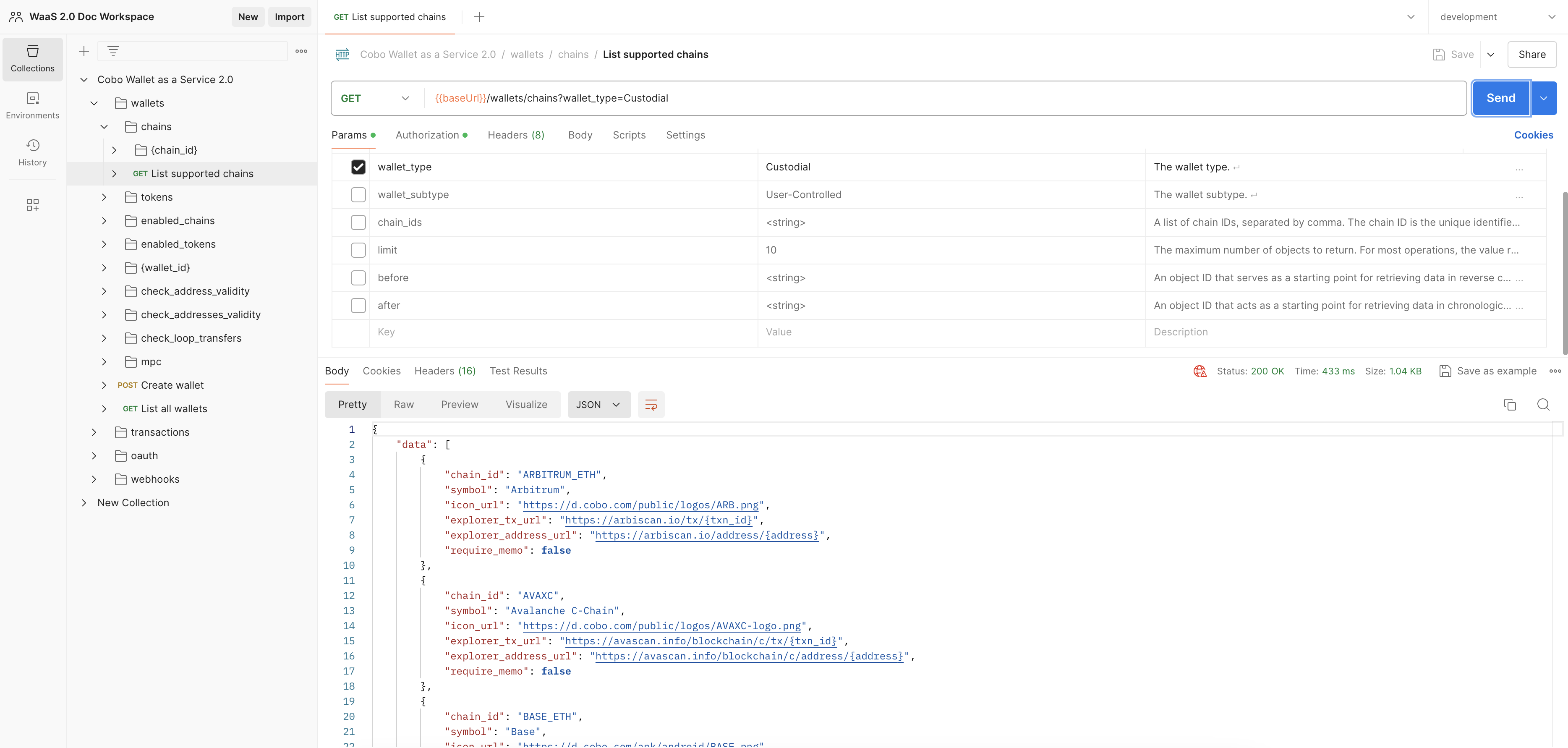
You have now completed the initial setup. The next step is to [send an API request](https://learning.postman.com/docs/sending-requests/create-requests/request-basics/#send-a-request):
1. Choose an operation.
2. Specify any parameters and body data if necessary,
3. Click **Send**. If the request is successful, you will find the response displayed in the response section at the bottom of the page.